GUIDE · VERSION 0.2-beta3
HOW IT WORKS
A short tour of Calm Launcher (the home screen) and Calm Layer (the apps). Read the first part, skip the rest until you need it.
LAYER 1
Calm Launcher
A home screen that is blank on purpose. It works on its own, with no other app and no computer.
1
Start here
Five minutes, once.
- Install the Calm Launcher first, then open it and press Home. Choose
notreal.calm as the home app. - The setup pages ask five questions with sliders: work, AI privacy, your data, music, and how much a home computer should do. There are no wrong answers. They only decide which features it suggests turning on.
- The last page explains what the apps read and where it goes, and asks you to confirm it. You can read it again any time in Settings, under Privacy and data.
- Then switch on only what you want: notification access (for the strip on the home screen), the assistant role (for search over any app) and the keyboard. All three are optional.
- Install any Calm Layer apps you want from the beta page, one at a time, now or later. They pick up your theme and settings from the launcher.
2
The home screen
Blank on purpose.
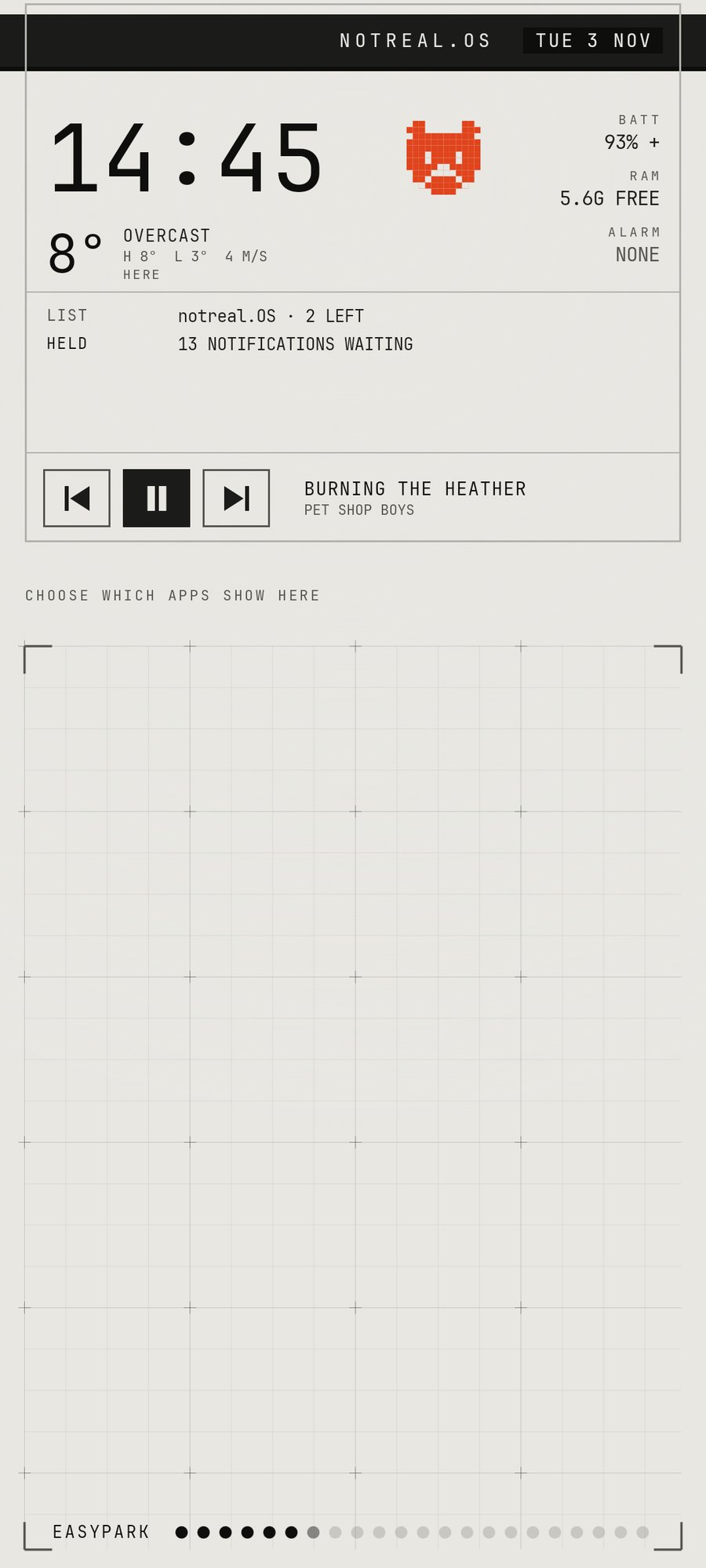
The widgetAt the top: big clock, weather, battery, free memory, next alarm, what is playing (controls on the left) and your latest reminders and notes.
Tap the clockOpens the Clock app: alarms, timers and stopwatch.
Tap the temperatureOpens Weather: radar, ten days and your saved places.
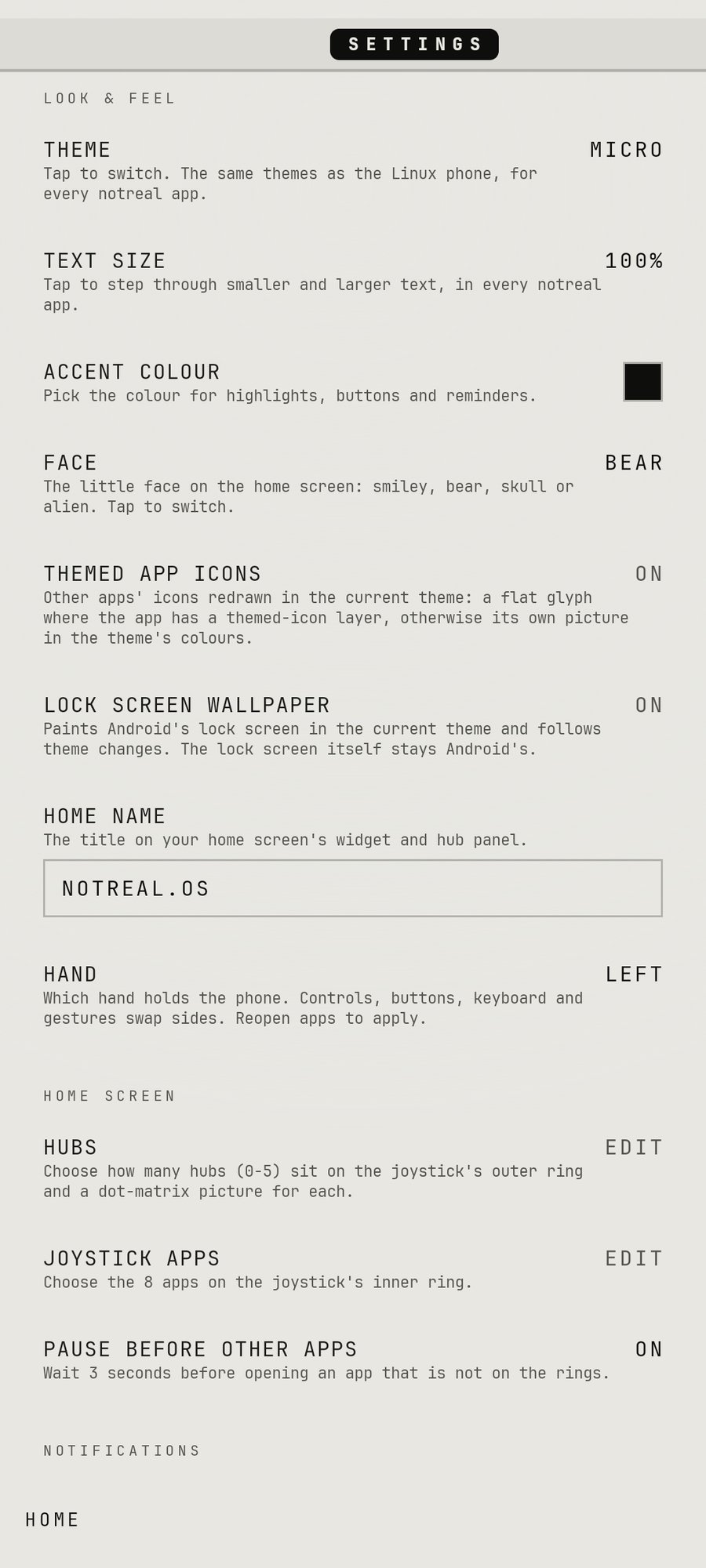
Long-press the widgetOpens Settings. This is the one gesture to remember.
The faceA small pixel face that blinks and slowly frowns as your screen time for the day grows. Change its style in Settings.
Notification stripThe latest notifications from the apps you pick. Tap one to open it. Swipe it either way to dismiss it everywhere.
HELDIf you turn on batching, ordinary notifications are held back and this line shows how many. Tap it for a written summary. See The digest below.
3
The joystick
How you open apps.
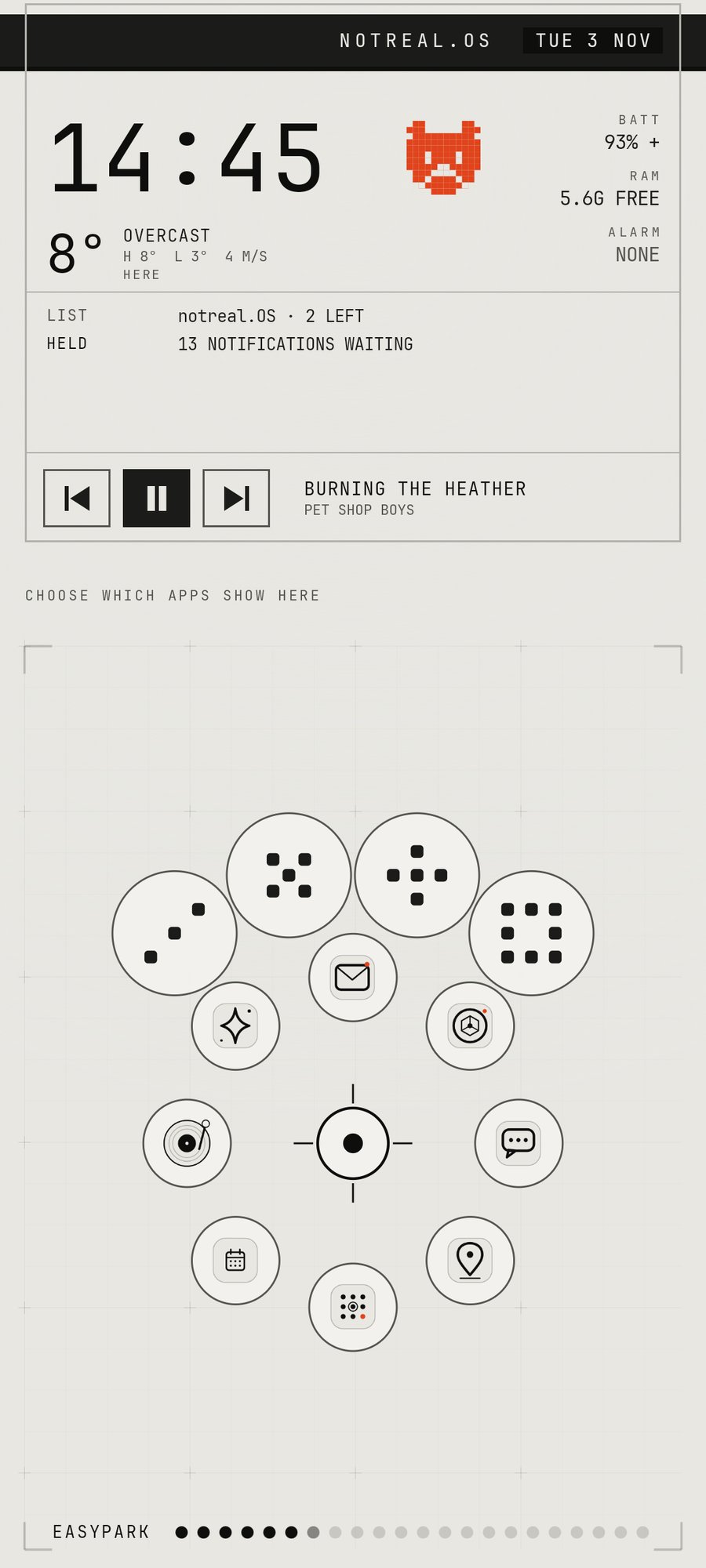
Touch and holdAnywhere on the grid. A small core appears under your thumb.
Slide and let goSlide towards an app and lift your thumb to open it.
Tap onceLeaves the apps fanned out, so you can pick without holding.
Inner ringYour eight most-used apps. They follow how you actually use the phone. You can also pick them in Settings.
Outer ringFour hubs: Messages, WhatsApp, Maps and Camera at first. Change which four apps and which dot picture each one gets in Settings.
All your appsThe joystick shows your favourites only. To see every app, slide up along the screen edge (next section).
4
Search and all apps
One page for both. Slide up along either side edge of the screen, left or right.
All your appsWith the box empty, the page lists every app from A to Z, with the search box at the bottom where your thumb is.
An app nameType a few letters and tap the app, or press Enter to open the first match.
A notenote buy stamps
A reminderremind call mum 17:30, remind pay rent tomorrow 9:00 or remind tea in 5m
A timertimer 5m pasta. A real alarm, which rings even when the phone sleeps.
A questionAnything that looks like a question is answered by the model on your home computer, or by a smaller one on the phone if the computer is off. Use continue in Ask to carry on in the Ask app.
Anything elseBecomes a web search.
5
Assistant and circle
Search on top of any app.
Turn it onSettings, then Assistant and keyboard, then make notreal.calm your digital assistant. The setup plan walks you through it.
Open itUse Android’s assistant gesture: swipe diagonally in from a bottom corner, or long-press the power button. This is a different thing from the edge swipe: it opens a small search window over whatever app you are in.
SpeakIt listens as soon as it opens. Tap TYPE INSTEAD if you would rather type.
Full searchIn the overlay, touch and hold, then slide the joystick straight up past the outer ring to jump to the full search page.
CircleTap CIRCLE, then circle some text on the screen behind it, or tap a line. You can call a number, open a link, show an address on the map, copy, search, ask the AI, or make a calendar event from a date.
6
The digest
Notifications wait for you. You read one briefing.
Turn it onSettings, then Notifications, then BATCH NOTIFICATIONS. It needs notification access. Ordinary notifications are then held back instead of buzzing.
What still comes throughCalls, alarms, reminders, music, navigation and any app you allow. To change an app, open the app list (slide up along the screen edge), long-press the app and choose ALWAYS ALLOW NOTIFICATIONS or BATCH ITS NOTIFICATIONS.
When it comesUp to three times a day, 09:00 and 18:00 at first. Set the times with the dials that appear under the switch. At each time a quiet notice says how many are waiting.
Open itTap the HELD line on the home widget, or the digest notice. The grid rains dots while the summary is written, then shows it. If it was written ahead of time, it opens at once.
Read itAn overview first, then what needs you, news, and one dim line of noise. Under it, one row per app, or per sender in chat apps. Tap a row to open that conversation. Swipe it away or press X to drop it.
DoneTap the summary to mark everything read and clear the list. Press Back to keep it for later.
Who writes itThe model on your home computer, if you set one up. Otherwise the phone’s own small model writes a plainer version. If neither is available, you get a count per app.
7
Notes and reminders from the keyboard
The swipe keyboard is part of the launcher. Enable it in Android settings, under keyboards.
Open the noteHold C on the keyboard. A sticky note opens above it, in any app. What you write is kept as you type.
Remind meWrite when in your own words, such as call dad tomorrow at 9 or in 20 minutes stretch, and tap REMIND. It becomes a launcher reminder and shows on your home screen.
Insert, save, clearINSERT pastes the note into the app you are typing in. SAVE keeps it. CLEAR empties it.
From searchType remind me in 5m tea into the launcher’s search and it is set too.
Also on the keyboardA clipboard, emoji, voice typing, and word packs for English, Spanish, French and Swedish.
8
Themes and settings
Everything follows the launcher, live.
WhereLong-press the widget. Seven sections: Look and feel, Home screen, Notifications, Assistant and keyboard, Accounts and access, Tools and Setup.
ThemeTen of them, including LEGACY (neon cyan on black).
Tap THEME to move to the next. Every Calm Layer app follows with no restart.
Home tintHOME TINT washes the home screen in a colour you choose, with a hue slider and a strength slider. Only the home screen changes: the other apps keep the theme’s own background.
Built inWeather, Clock and Notes live inside the launcher. No separate install.
AccentEach theme remembers its own accent colour.
Text size90 to 130 percent, for the launcher and every add-on.
Left or right handBuilt for left-handed use: frequent buttons sit on the left. You can switch to right-hand mode in Settings.
LAYER 2
Calm Layer
The apps that finish the job. Each one works alone. Install only the ones you will use.
9
The apps
PlayerYour own music server (Navidrome, Subsonic or Jellyfin). Add the server address in Settings, under Accounts and access. Long-press the cover to change a spinning vinyl into a cassette.
ChatMatrix chat, with bridges to WhatsApp, Messenger, Instagram and Signal if you run them. Without a Matrix account it has nothing to show.
Mail and CalendarGmail, Microsoft 365 and other IMAP accounts in one inbox, plus the calendar. Swipe right to snooze, left to trash. The switch in the top bar jumps between mail and calendar.
MapsSearch, routes and turn-by-turn walking, driving, cycling and transit. It needs a Google Maps key in Settings, under Accounts and access. While you walk, the route is also drawn on the launcher’s home grid like a small radar: you in the middle, the way ahead lit up, the next turn blinking.
AskChat with the model on your home computer, with web search and image generation (draw a lighthouse).
CameraFilm looks. Volume keys take the picture. A second shutter sends the photo to your computer to enhance.
Hub and WatchBoth need a computer at home. Hub shows which of its services are up. Watch plays video links through it.
Pump (coming soon)A gym log: guided sets with rest timers, a suggested weight for next time, workouts saved to Health Connect, and workout music started from your Player.
10
How they connect
The layer is more than a pile of apps.
RemindersNotes written in the keyboard show on the launcher as reminders.
MessagesChat and Mail messages appear on the launcher’s notification strip, and the digest summarises them. Each app asks once to show notifications: say yes.
RadarStart a walk in Maps and the launcher’s home grid becomes a small radar: you in the middle, the route ahead lit up, the next turn blinking.
PlaylistsPump and Maps can start one of your own lists from the Player. In Pump, tap WORKOUT MIX. In Maps, tap the trip list chip.
One lookTheme, accent colour, text size, language and left or right hand follow the launcher in every app.
11
Your computer at home (optional)
Calm Launcher and Calm Layer both work on their own. A home computer adds more.
What it addsA bigger model for questions and the summary, faster voice recognition, image generation and the Hub and Watch apps.
How it connectsOver Tailscale, a private network between your own devices. You enter the computer’s address once, in Settings, under Accounts and access.
Without itSearch, timers, reminders and basic voice still work, using a smaller model on the phone.
12
If something is wrong
App not installedInstall the launcher first, and use only the files from the beta page. If you have another build of notreal apps from elsewhere, uninstall it first.
A Calm Layer app looks plainOpen the Calm Launcher once after installing the app, so they can share your theme.
The notification strip is emptySettings, then the setup plan, and grant notification access. Then pick which apps to show.
Alarms or reminders are lateAndroid may be saving battery. Open the Android app settings for notreal.calm and set battery to unrestricted.
The keyboard does not typeEnable it in Android settings, under keyboards, and choose it when asked.
Back to your old home screenAndroid settings, then Apps, then Default apps, then Home app. The launcher changes nothing else.
13
Tell me
Something broke, or something felt wrong? Use the feedback box on the beta page. What you did, what you expected, and what happened.